Send a Digital Case

The Benefits of a Digital Workflow

Get Started with My Account

Send cases directly from your scanner or through My Account, then track, manage, and review everything in one connected workflow.

Don't have My Account? Give us a call at 800-854-7256 and we'll help you set it up.

Send a Digital Case

Our customers receive a $20 per-unit savings on:

  • BruxZir® Full-Strength Zirconia cases
  • BruxZir® Esthetic cases
  • Obsidian® pressed to metal
  • IPS e.max® cases
  • Custom abutment implant crown cases
  • Screw-retained implant crown cases

How it works

Glidewell supports digital submissions across leading scanners and workflows, making it easy to use the process that works best for your practice. Once submitted, every case is centralized in My Account for tracking, communication, case management, and 3D design review.
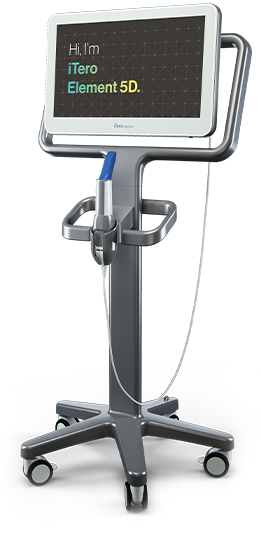
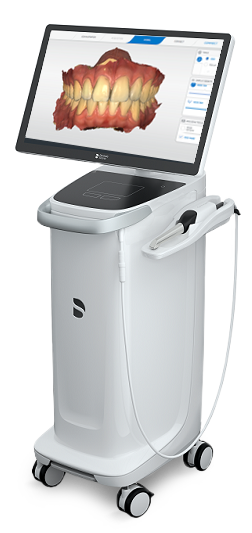
iTero

iTero

  1. Contact Align Technology directly to add Glidewell to your list of “Favorite Labs”. Provide Glidewell Lab ID as 318
  2. Under “Partner” search for Glidewell by entering CDOP@glidewelldental.com and request partnership
  3. Once partnership is approved, you can select Glidewell when completing the digital Rx

iTero Element is a product of Align Technology Inc..
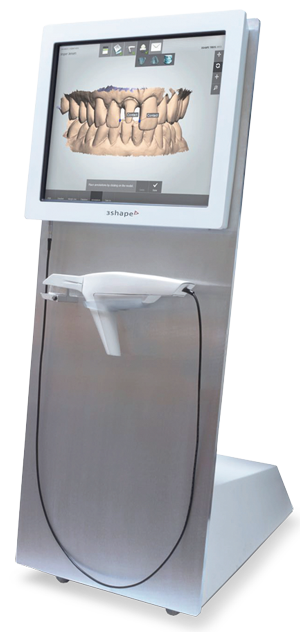
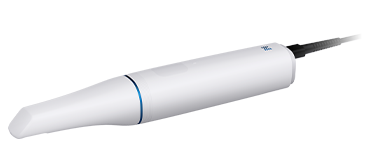
Trios Product

Trios

  1. Log in to your 3Shape account
  2. Under “More” select “Settings”
  3. In the menu, click “Connections” then “Labs” and “Add”
  4. Search “Glidewell” and click “Connect” to send a request to connect
  5. Once the connection request has been approved, please look for "Glidewell" under your "Scan & Send" menu heading

Trios is a product of 3Shape.

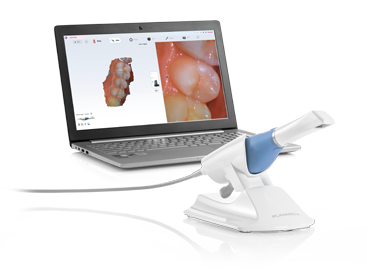
 Medit

Medit / fastscan.io

  1. Log in to your Medit account at meditlink.com
  2. Under “Partner” search for Glidewell by entering CDOP@glidewelldental.com and request partnership
  3. Once partnership is approved, you can select Glidewell when completing the digital Rx

Medit i900 is a product of Medit.

CREC Machine

CEREC - Sirona Connect

  1. Log in to Sirona Connect
  2. Select “My Cerec Connect” then “Edit Account”
  3. Under “My Account” select "My Favorite Laboratories”
  4. Search “Glidewell” in the field for “Company name” and check the box
  5. Click "Add” to register
  6. Select your restoration preferences and send the scans by selecting “Submit Cart”

CEREC is a product of Dentsply Sirona.
CEREC - DS Core

  1. Login to your DS Core account at DSCore.com.
  2. Select the Patients tab on the left.
  3. Click on the name of the patient you want to upload a case for or click "+ New Patient" if the patient is not on the list.
  4. Click on the Orders tab to view all orders for that patient
  5. Click on the blue "+ New Order" button in the upper right side of the screen. 
  6. Select the Service you would like, then click on the blue Continue button in lower right side of the screen.
  7. Select the Service Provider (Glidewell Laboratories), Treatment (type of restoration), Location, and treatment details, then click Continue.
  8. Upload any files in addition to the scan (via the PC or phone) if desired, then click Continue.
  9. Review what you have selected for the case, select the desired return date, add any additional comments (if desired), then click Place Order to send the case to the lab.
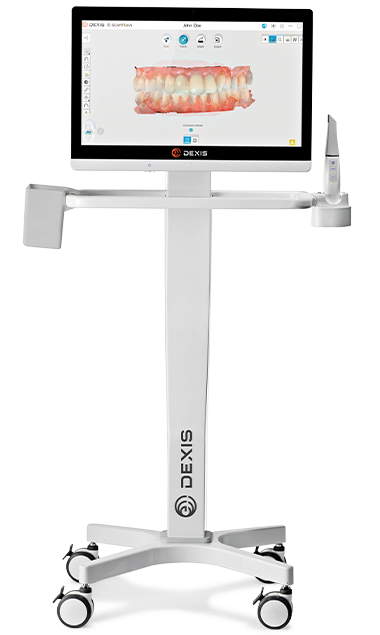
DEXIS

DEXIS

  1. Log in to "DEXIS IS Connect" as a dentist
  2. In the toolbar, click the "Partners" icon
  3. In the "Partners" window, click "Invite a partner"
  4. In the Email field, enter "CDOP@glidewelldental.com"
  5. In the "Message" box, either leave the default text or write your message
  6. Click "Send." The invitation message is sent to Glidewell and a partner entry is created in the list of "Partners"
  7. Once partnership is approved, you can select Glidewell when completing the digital Rx
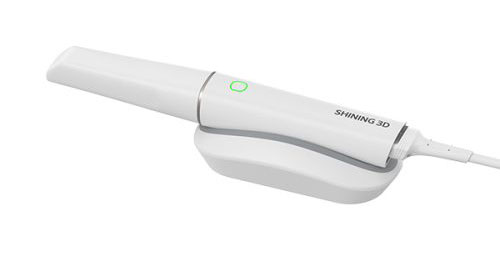
S3D-Aoralscan-Elf

Shining 3D

  1. Log into the Dental Cloud and open the "Connections" tab.
  2. Click "New" and type Glidewell into the upper field.
  3. Click "Search" to the right and select Glidewell Dental.
  4. Be sure to select the verified connection.
  5. Verified via email; look for "CDOP@glidewelldental.com"
  6. Click "Confirm" to send the request for Glidewell to accept.
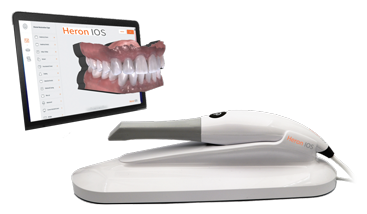
Heron™ IOS

Heron™ IOS

  1. Log in to your HeronClinic™ account
  2. Add Glidewell as a lab of choice in the HeronCloud™ interface by clicking “Connections” and “Add Connection”
  3. Select Glidewell when completing the digital Rx
  4. The case will be sent to Glidewell through the Heron portal

Heron™ IOS is a product of 3DISC.

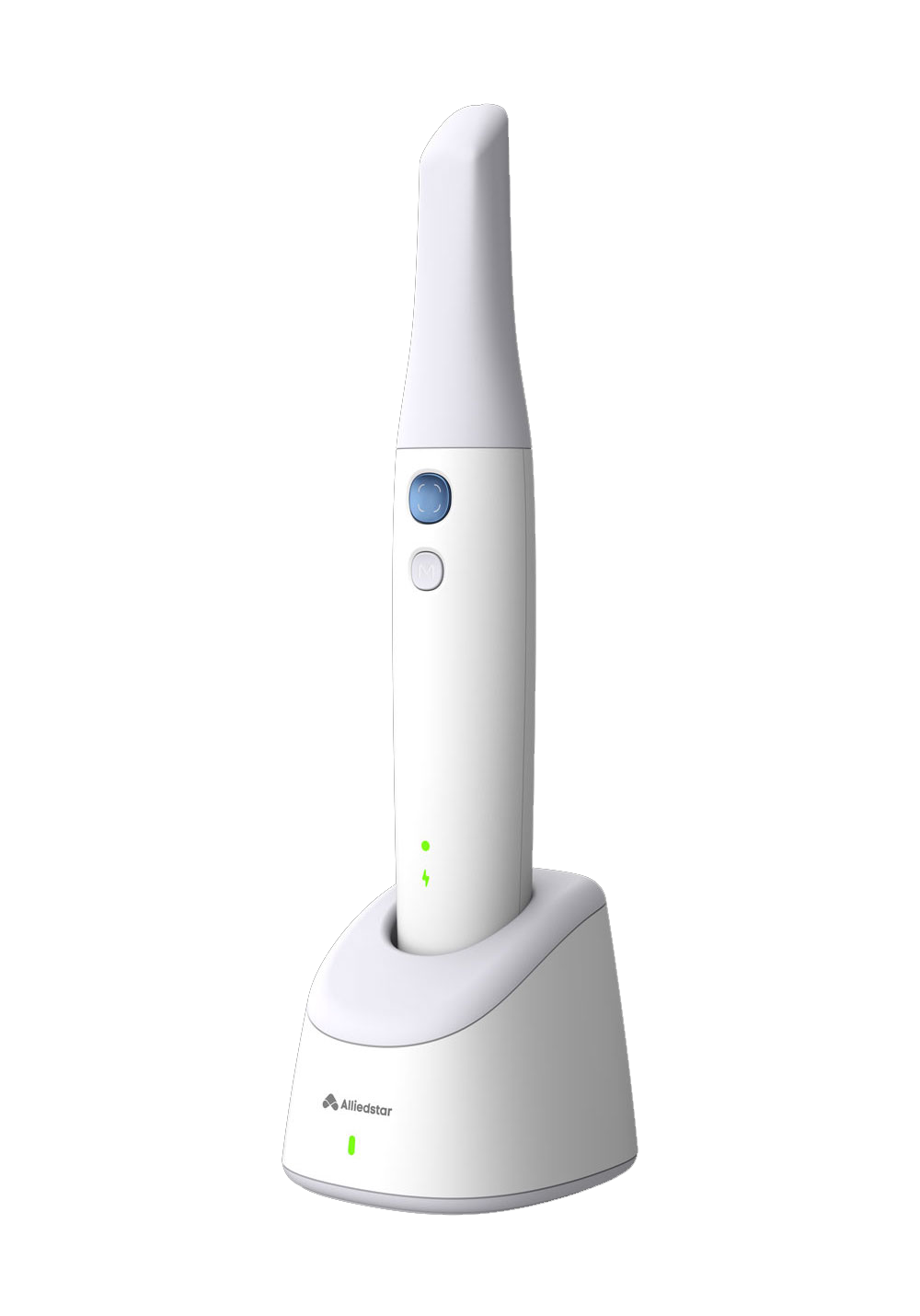
Alliedstar

Alliedstar

  1. Log in to your Alliedstar AS Connect account
  2. Click My Partner menu (globe icon in lower left)
  3. Click Add Partner from the My Partner menu
  4. Enter Glidewell in the Add Partner window and click Search
  5. Select Glidewell from the search results
  6. Click Apply to submit the partnership
  7. Once the connection is approved, Glidewell will appear in your Partners list
  8. To send cases to Glidewell, select Glidewell to send scans directly to our lab
Planmeca

Planmeca

  1. Complete the digital Rx in the Planmeca Romexis® application
  2. Click “3D Model Export”
  3. Log in to the “My Account” section of our website
  4. Complete the patient information and delivery data form
  5. Select the appropriate files and click “Upload Files”

Note: Planmeca customers can send scans securely through Planmeca Romexis CloudPlanmeca is a product of Planmeca USA.

Other Scanning Systems

Glidewell accepts scans from almost any scanner. For those scanning systems that do not have a direct connection portal to Glidewell:
  1. Refer to your scanner reseller for how to export you scan files in STL format
  2. Once you have obtained them, you can upload on MyAccount

Looking For Something Else?

Upload photos and notes

Add photos, shade references, or case context to improve speed and outcomes.

Send a Physical Case

Schedule an in-office pickup today and we’ll begin processing your order the next business day.

Frequently Asked Questions

Real-time visibility. Total control over every case.

My Account is an efficient way to submit and manage your cases with Glidewell bringing everything into one connected digital workflow.

Submit directly through My Account. Your fully digital workflow with Glidewell.

Upload your scan, add photos, complete your Rx, and submit in minutes. Once submitted, your case is instantly trackable and connected to the lab no gaps, no delays.

No. Glidewell accepts digital impressions from all major intraoral scanning systems.

If your scanner exports STL or .PLY files, you can upload them directly through My Account, no additional software or integrations required.

  • Submitting through My Account gives you speed, visibility, and control across every case:
  • Submit in minutes — eliminate printing, packaging, and shipping delays
  • Track in real time — know exactly where every case stands
  • Communicate directly with the lab — faster answers, fewer remakes
  • Review and approve 3D designs digitally
  • Attach photos and clinical notes for more predictable outcomes
  • Unlock digital savings on select restorations and appliances

Yes. You can schedule a pickup using FedEx or USPS.

That said, most practices are moving to digital submission through My Account for faster turnaround, greater visibility, and a more streamlined workflow.

All cases submitted through My Account are tracked in real time.

You’ll always know exactly where your case stands without needing to call or follow up.

My Account gives you a direct line to the lab.

Send notes, attach photos, and communicate in real time — so questions get resolved faster and cases keep moving without delays.

Yes. Many digital cases qualify for per-unit savings compared to traditional workflows.

Beyond cost savings, digital submission reduces errors, minimizes remakes, and saves time across your entire practice.

Make My Account Your Workflow Hub

Submission. Communication. Tracking. Design review—connected in one place.

This is where Glidewell work gets done.